
Help centre Billing
Billing team guide
What you do: see which project months are ready to invoice, download the invoicing report for a project and month, and mark a month invoiced once the invoice is sent. If you want rates filled in for you, you keep the rate card.
You see approved and pending lines, rates and the invoicing reports. You don't see the team or change project codes.
1. See what's ready to invoice
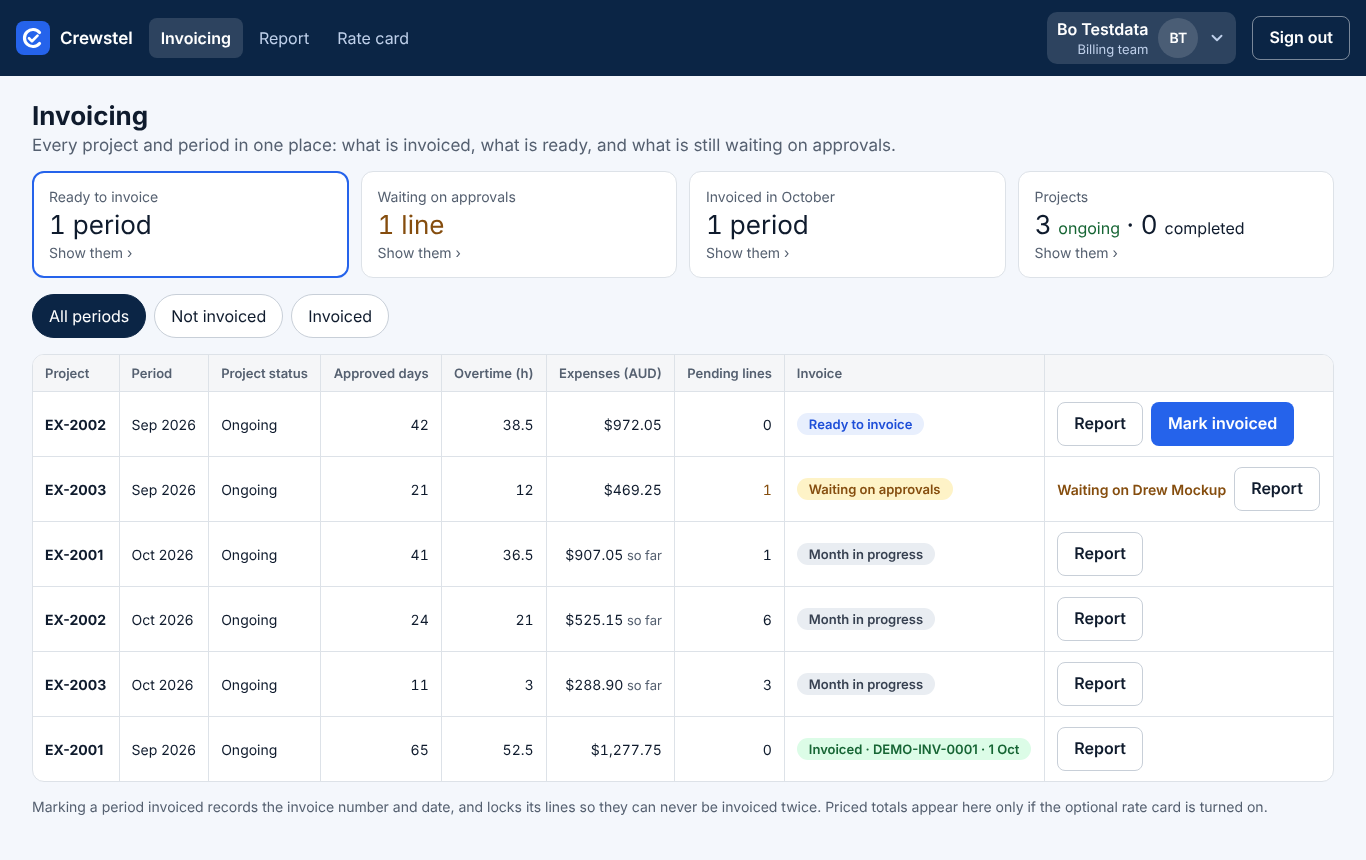
- Sign in: the app opens on Invoicing.
- The tiles count what's Ready to invoice, what's Waiting on approvals, and what's invoiced this month. Tap a tile to show only those months.
- A month waiting on approvals says who it waits on ("Waiting on Pat Sample"). Ask them to approve the last lines.
2. Get the invoicing report
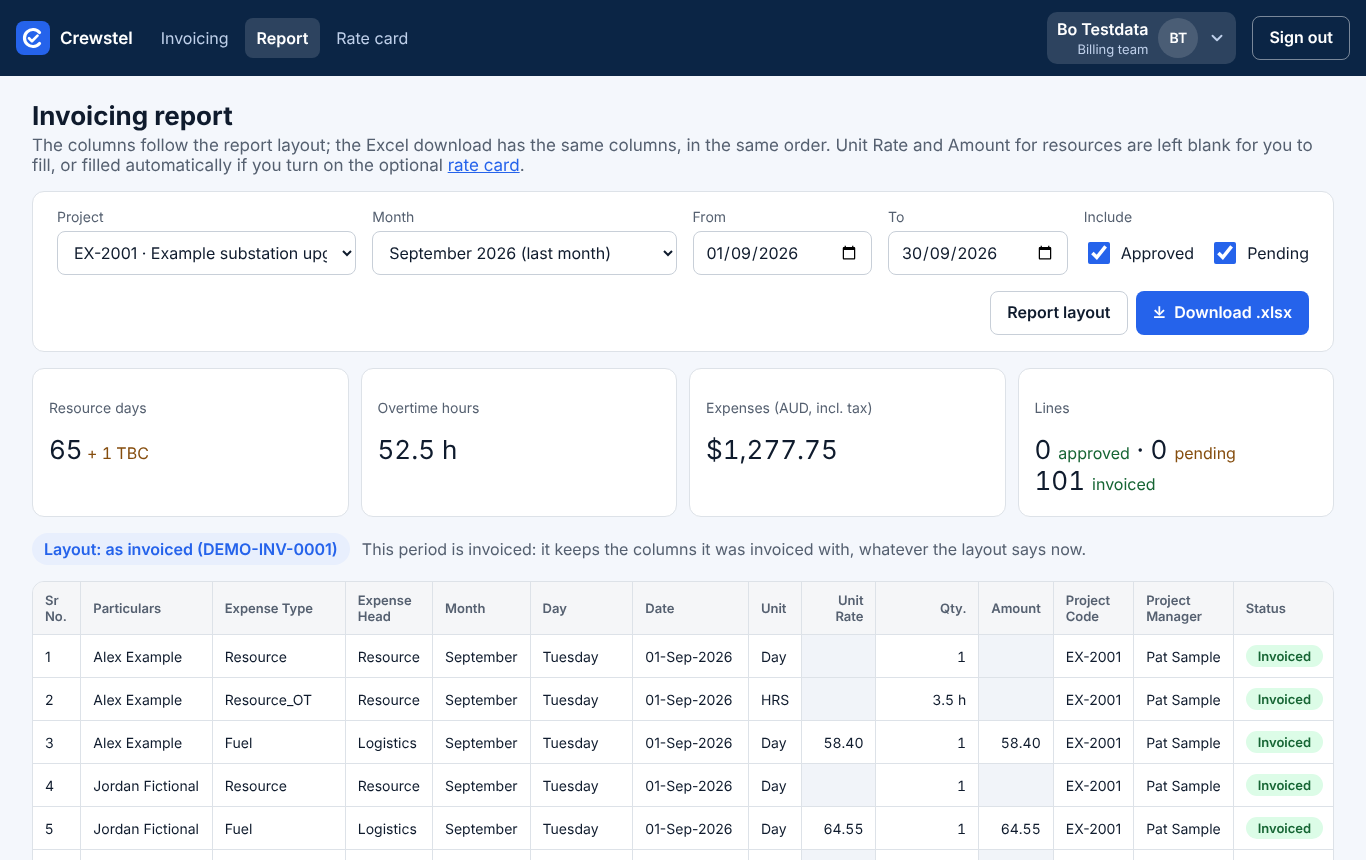
- Tap the Report tab: it opens on the month you most likely want next (the first one ready to invoice). Or tap Report on a row of Invoicing to open that project and month.
- Pick another Project or Month if you need to.
- Tap Download .xlsx. The Excel file has the same columns as the screen.
Report, the project or month, Download .xlsx: three clicks. Unit Rate and Amount for people's days are left shaded for you to fill in, unless the rate card is turned on. "Rate missing" or "TBC" in amber means something still needs deciding.
To show, hide, rename or reorder columns, tap Report layout.
3. Mark a month invoiced
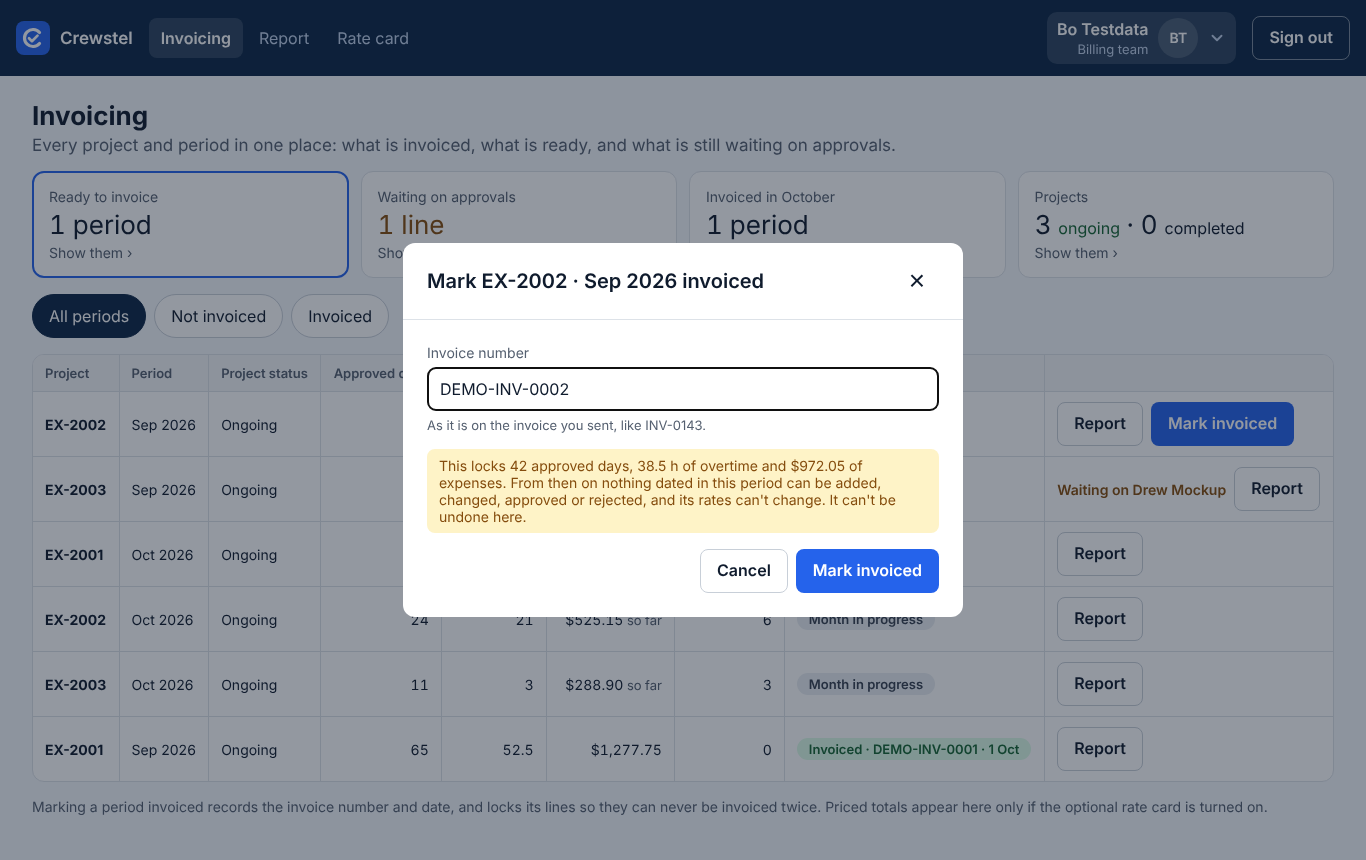
- On Invoicing, tap Mark invoiced on a month that's ready.
- Type the Invoice number as it is on the invoice you sent.
- Read what it locks, then tap Mark invoiced. The row shows the number at once.
This can't be undone here: every line dated in that month is locked from then on.
4. Keep the rate card (optional)
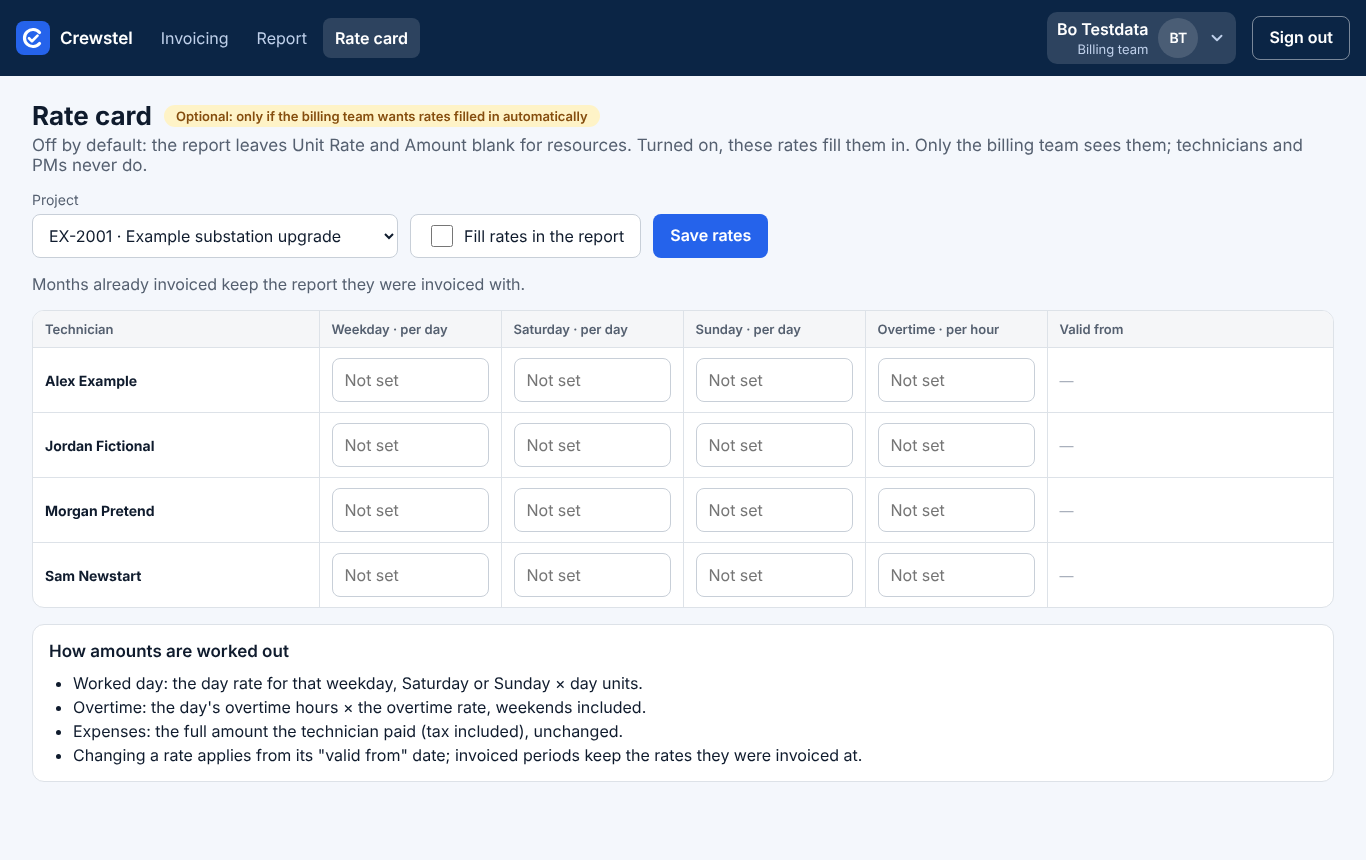
- Tap Rate card and pick the Project.
- Type each technician's rates: weekday, Saturday and Sunday per day, and overtime per hour.
- Tick Fill rates in the report and tap Save rates.
New rates start the day after the last invoiced month. Months already invoiced keep the report they were invoiced with.
If something goes wrong
- No signal. You see "No signal, try again". Nothing you typed is lost; the invoice number stays in the box.
- Wrong project code on a line. You can't change lines. Tell the project manager before you mark the month invoiced: they reject it so the technician fixes it, or an admin reopens an approved one.
- A month won't mark invoiced. A line is still pending, or the number is already used. The message says which. Pending lines need the project manager first.
- A locked month. An invoiced month can't change. Its report keeps the columns and rates it was invoiced with.
- A rejected line isn't counted until the technician fixes it and it's approved again.
Pictures are from the app with made-up people and projects, never real ones. All guides