
Help centre Project manager
Project manager guide
What you do: approve or reject each line (a day or an expense) your technicians send on your project codes, and add technicians to your projects. Approved lines go to the billing team; rejected ones go back to the technician with your reason.
You see the team, every project code and every assignment. You decide lines on your own codes.
Two-step approval. If your company uses it, a coordinator approves each line first. Your queue then shows only the lines a coordinator approved, each with who approved it and when, and you approve or reject them as below. A rejection at either step goes back to the technician, and the fixed line goes to the coordinator first again.
1. Approve a line
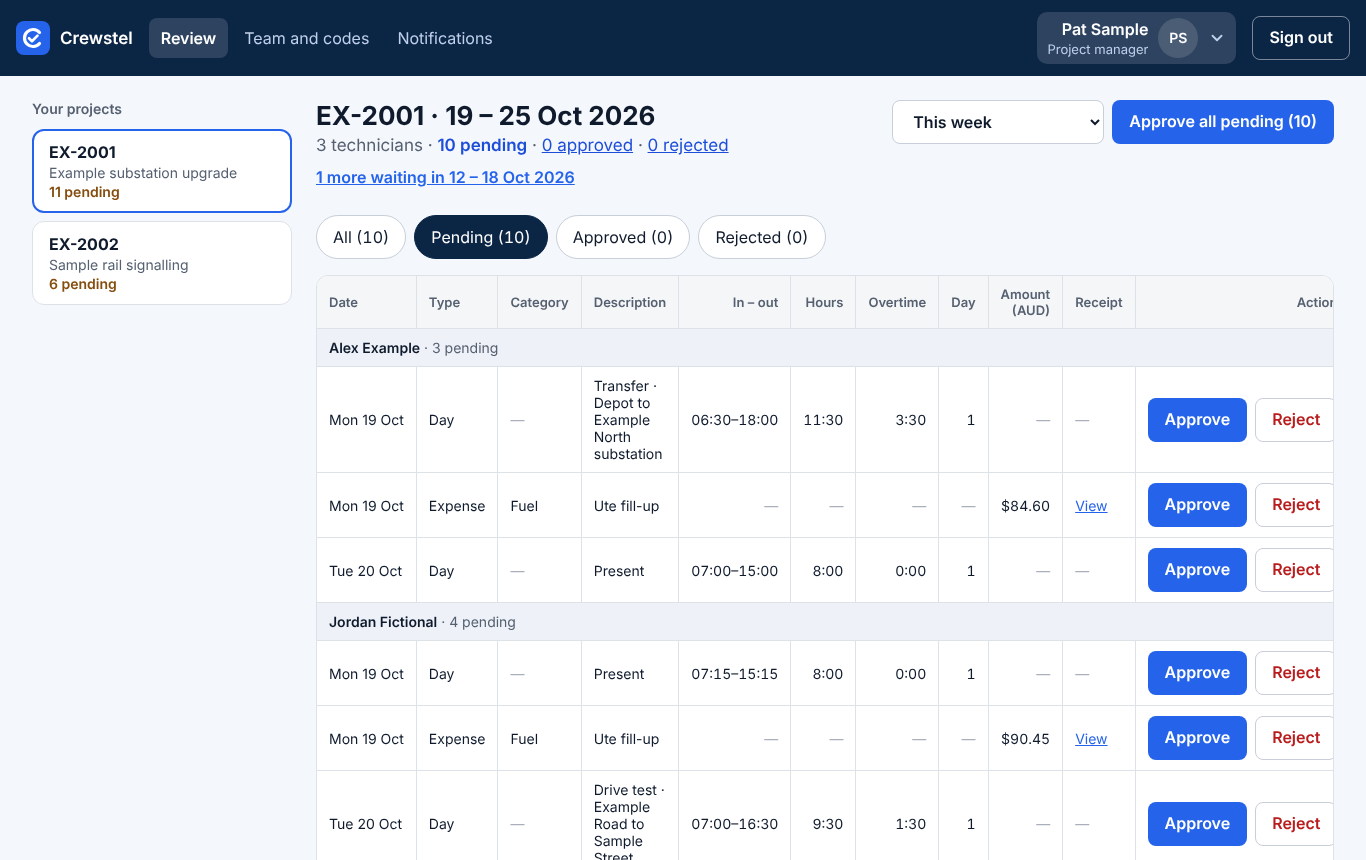
- Sign in: the app opens on Review, on the first project with lines waiting, at the oldest week that still has one.
- Tap Pending to see only what waits for you.
- Check the line, then tap Approve. That's one tap; the row changes at once.
To see another project, pick it under Your projects. "1 more waiting in …" opens another week with lines waiting.
2. Undo an approval
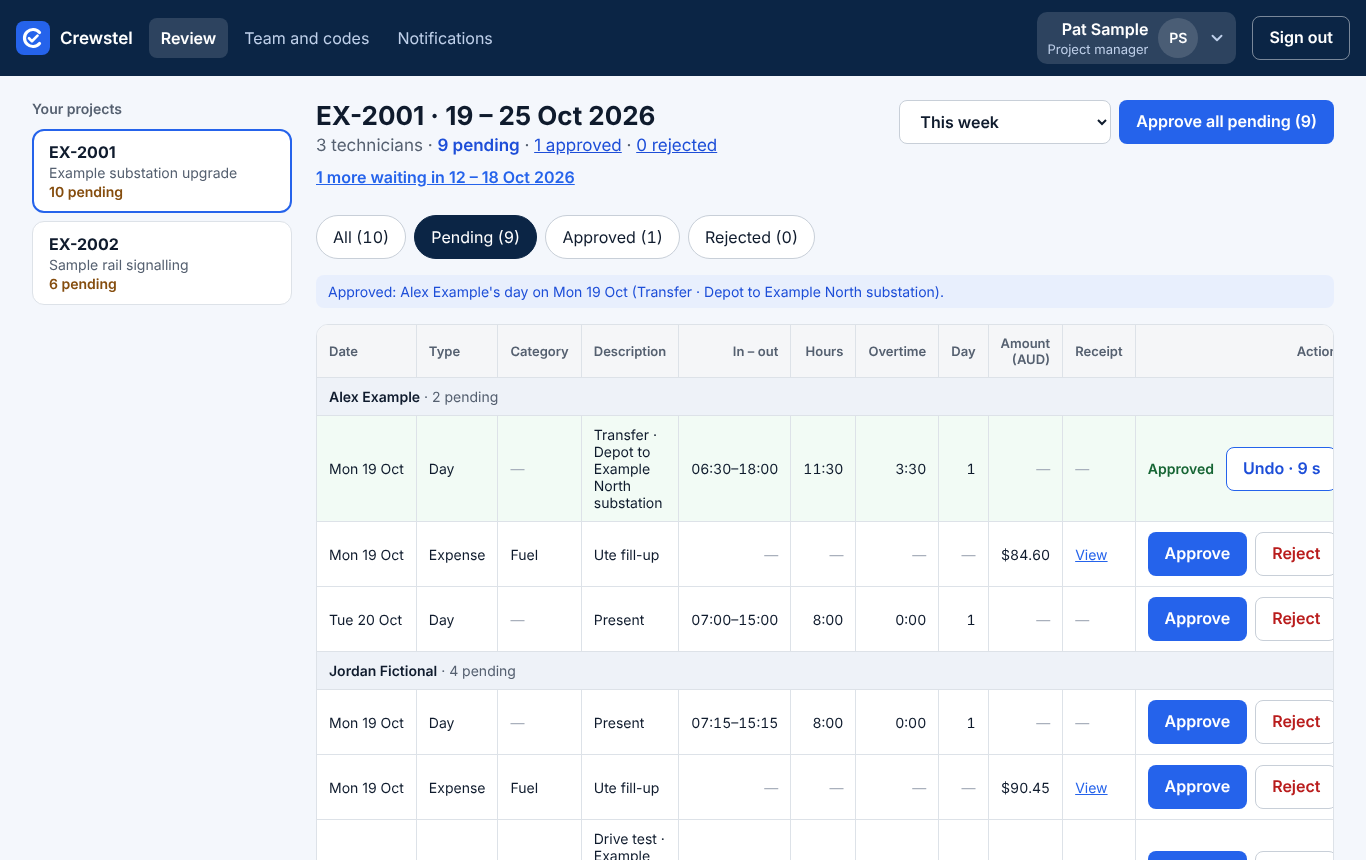
Approved the wrong line? Right after Approve the row shows Undo counting down from 10 seconds. Tap it and the line waits again. After 10 seconds an admin can reopen the line with a reason (see "If something goes wrong").
3. Reject a line, with the reason
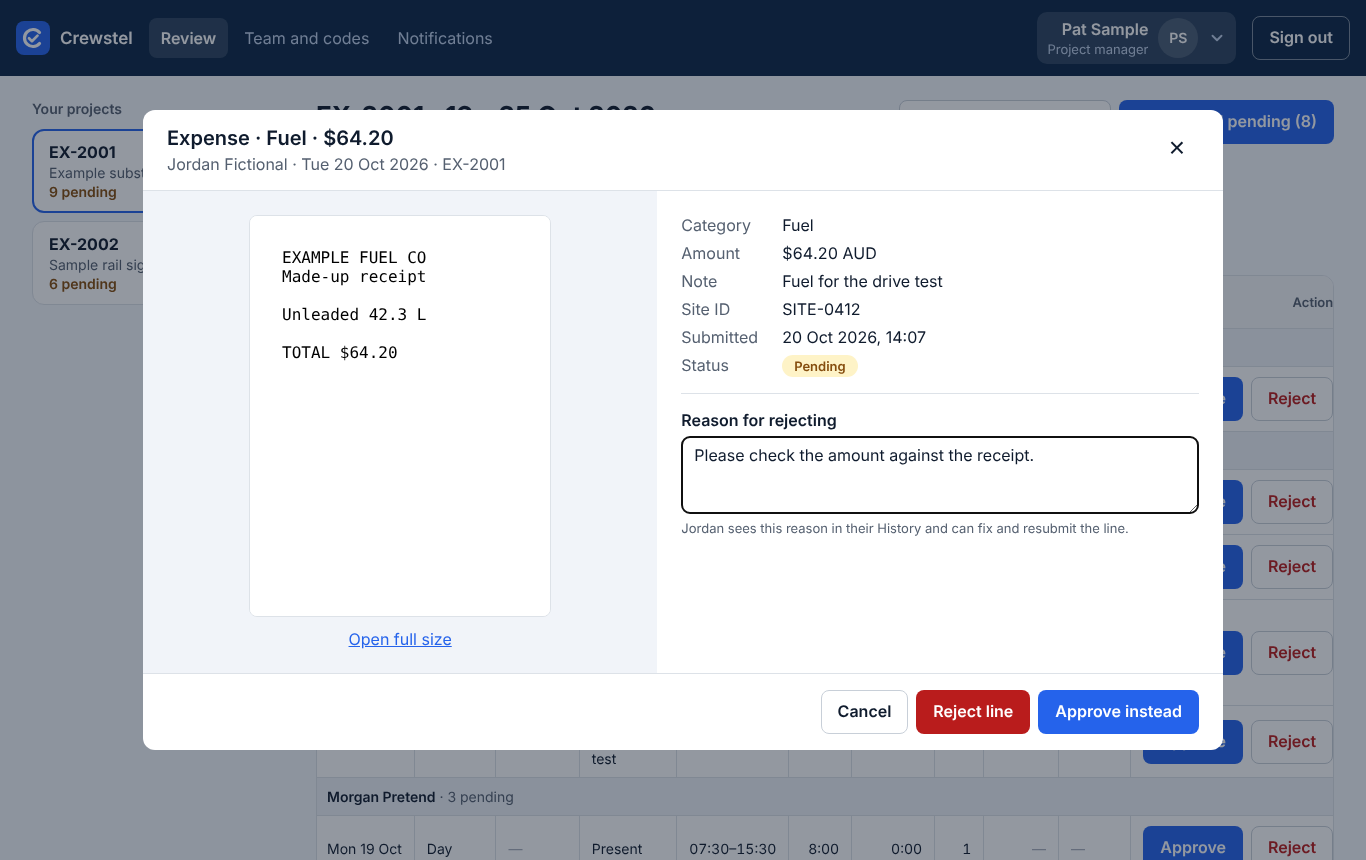
- Tap Reject on the line (or View on an expense to see its receipt).
- Type the reason: what the technician should change. A reason is required.
- Tap Reject line. The technician sees your reason in their History, and usually gets an email.
Opened it and it's fine after all? Tap Approve instead.
4. Approve a whole week
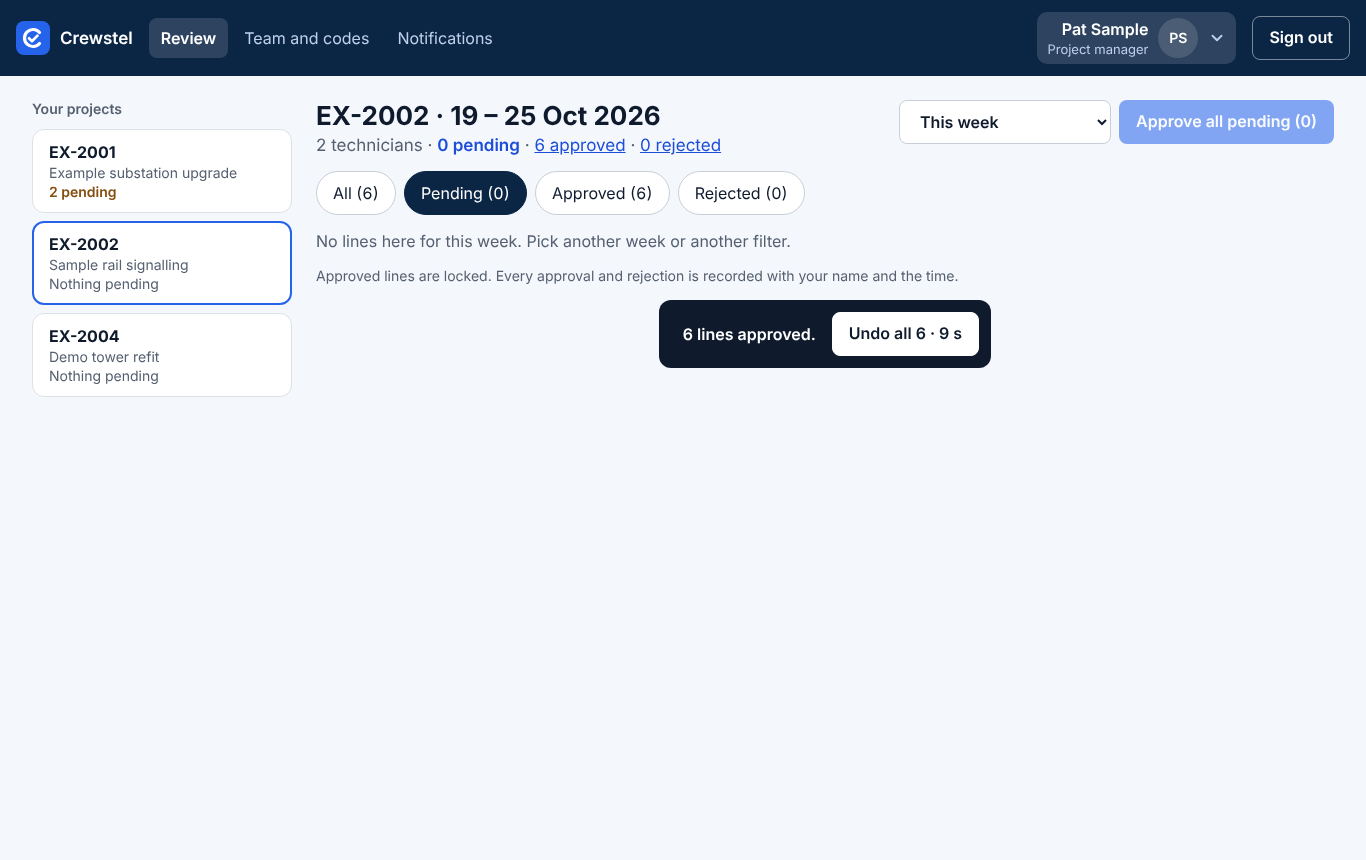
- Tap Pending.
- Check the lines, then tap Approve all pending. It says how many were approved.
- Changed your mind? Undo all at the foot of the screen works for 10 seconds.
5. Add a technician to your project
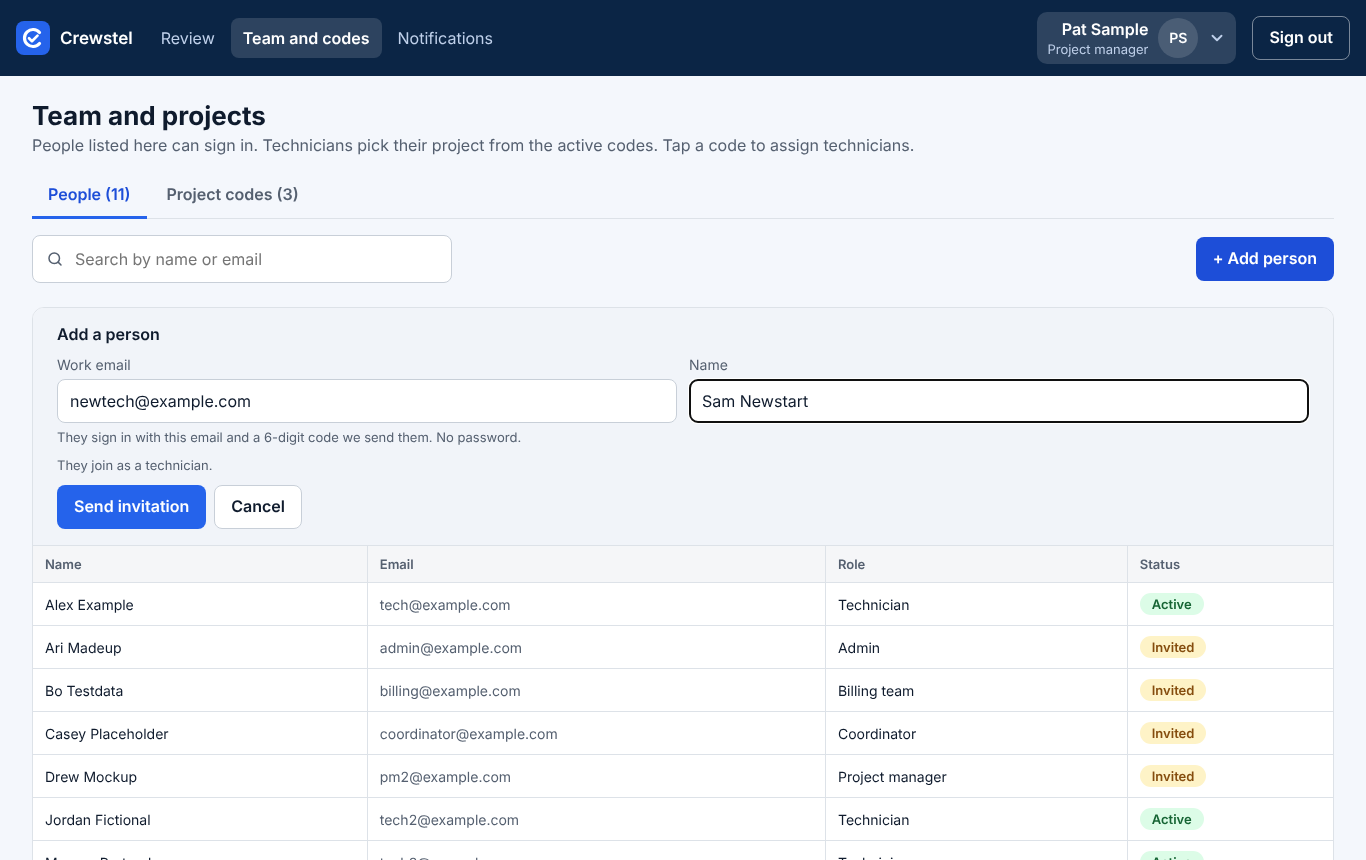
- Tap Team and codes, then + Add person.
- Type their Work email and Name, then tap Send invitation. They join as a technician and get an email with how to sign in.
- Tap Project codes, then Assign on your code.
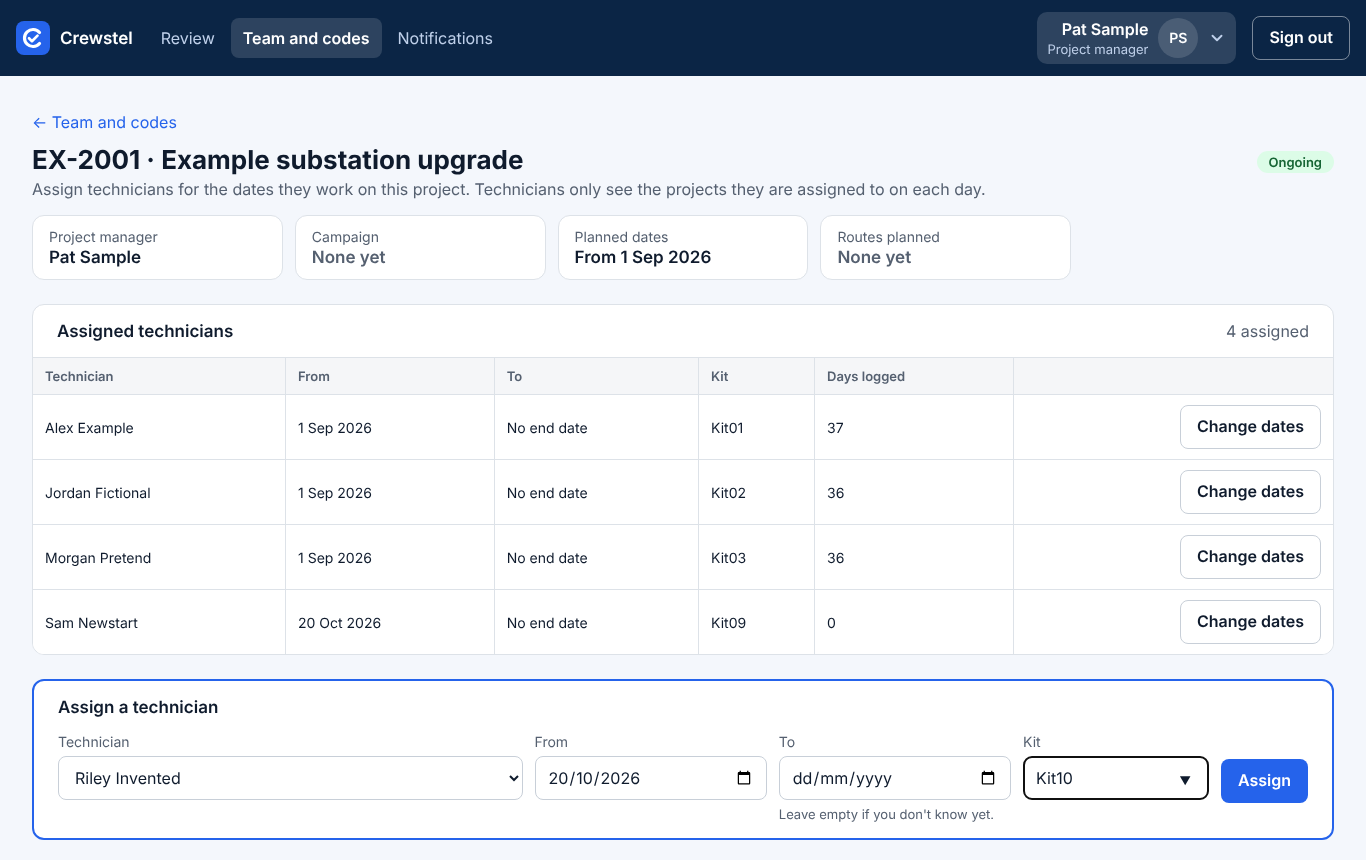
- Under Assign a technician, pick the technician. From is today; leave To empty if you don't know yet. Add their Kit if they have one, then tap Assign.
The technician sees the project on My day from the From date.
If something goes wrong
- No signal. You see "No signal, try again: Nothing you typed is lost." Your reason stays typed; try again when you're back online.
- Wrong project code on a line. Reject it and say which code it should be: the technician changes it and sends it again. If it's already approved, ask an admin to reopen it.
- A line changed while you were looking. The row says so ("The technician changed this line…") and shows it as it is now. Check it again before you decide.
- A locked line. Approved and invoiced lines can't be changed. After the 10-second Undo, only an admin can reopen an approved line, with a reason; both are kept in the line's history. A line in an invoiced month can't be reopened.
- A technician says they're "not on a project". Assign them to the code for those dates (task 5).
- Emails. Notifications sets which emails go out (daily approvals digest, line rejected, day not filled in, period ready to invoice). The settings apply to everyone in your company.
Pictures are from the app with made-up people and projects, never real ones. All guides