
Help centre Technician
Technician guide
What you do: record each working day on your phone (your times and what you did), add your expenses with a photo of the receipt, and fix any line your project manager sends back. If you drive routes, you also fill in what happened on the route.
You see only your own days and the projects you are on that day.
1. Sign in
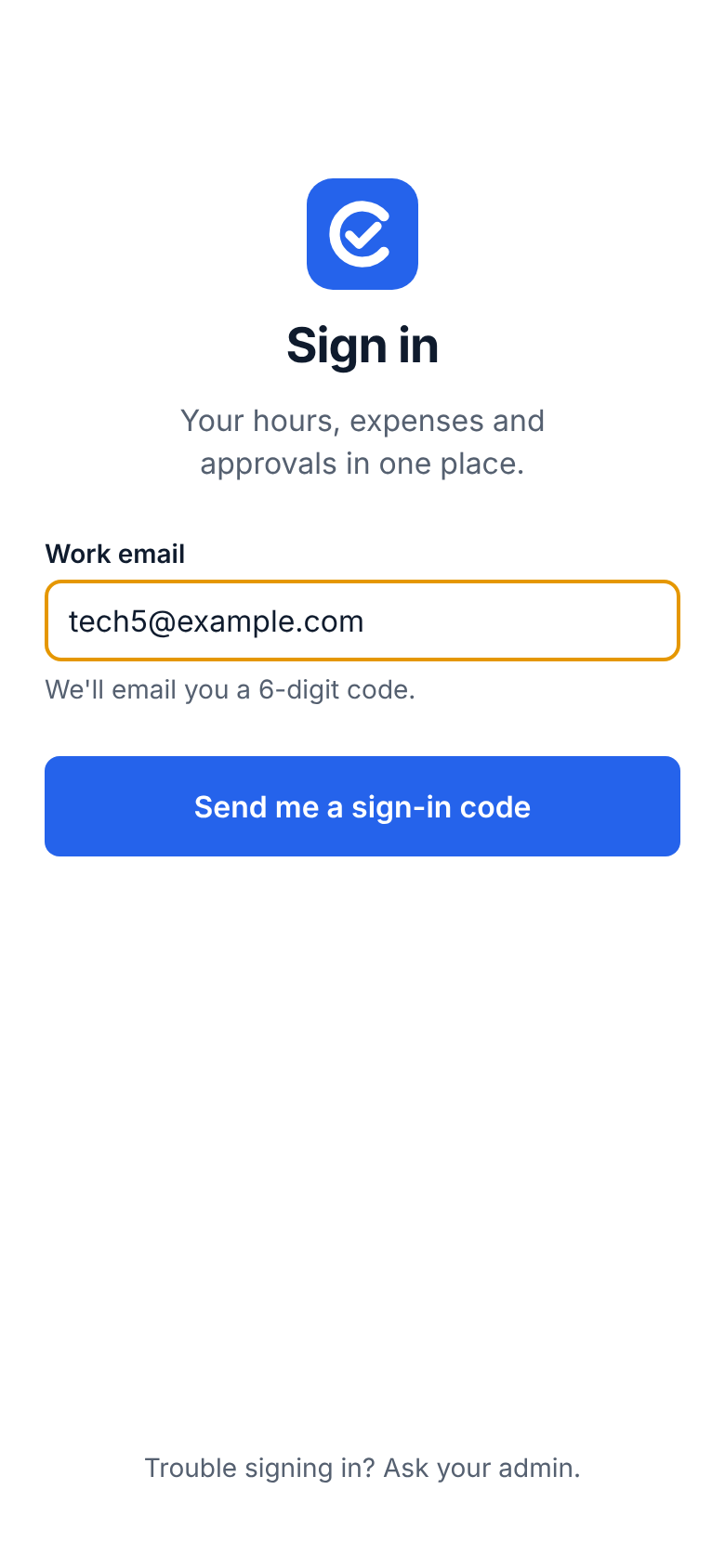
- Open the app. Your work email is already filled in if you signed in on this phone before.
- Tap Send me a sign-in code.
- Type the 6-digit code from the email. The sixth digit signs you in.
You stay signed in for 30 days, so you aren't asked for a code on site.
2. Record your day
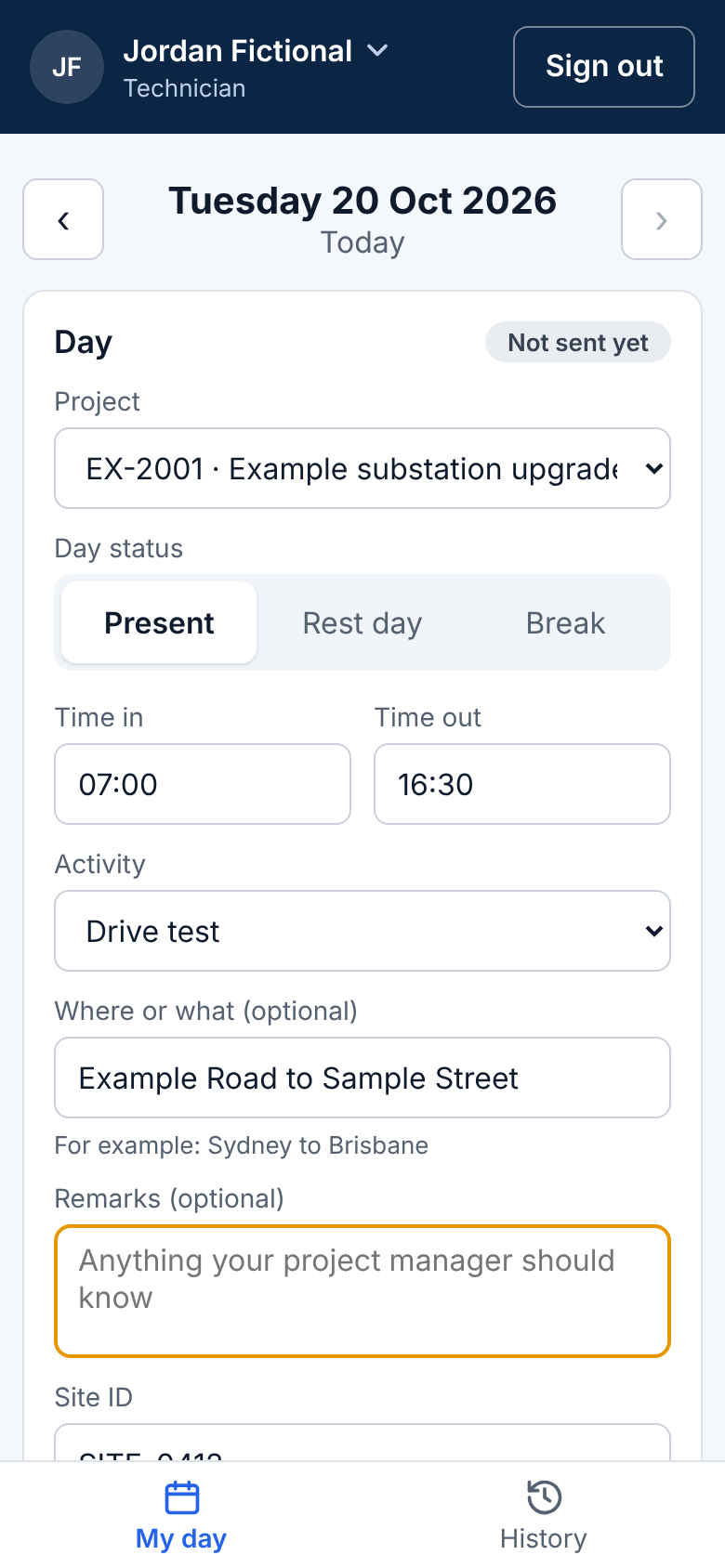
- The app opens on My day for today. Your project is already picked; on a new day your times and activity are filled in from your last day ("Filled in from …: check the times").
- Check Time in and Time out (24-hour, like 07:00 and 16:30) and the Activity. Add Where or what if it helps.
- Tap Save and send for approval. It now says "Sent for approval".
Worked hours, overtime and day units are worked out for you as you type. A normal day is one tap.
For a rest day or a break, tap Rest day or Break instead of typing times. For another day, use the arrows next to the date.
3. Add an expense
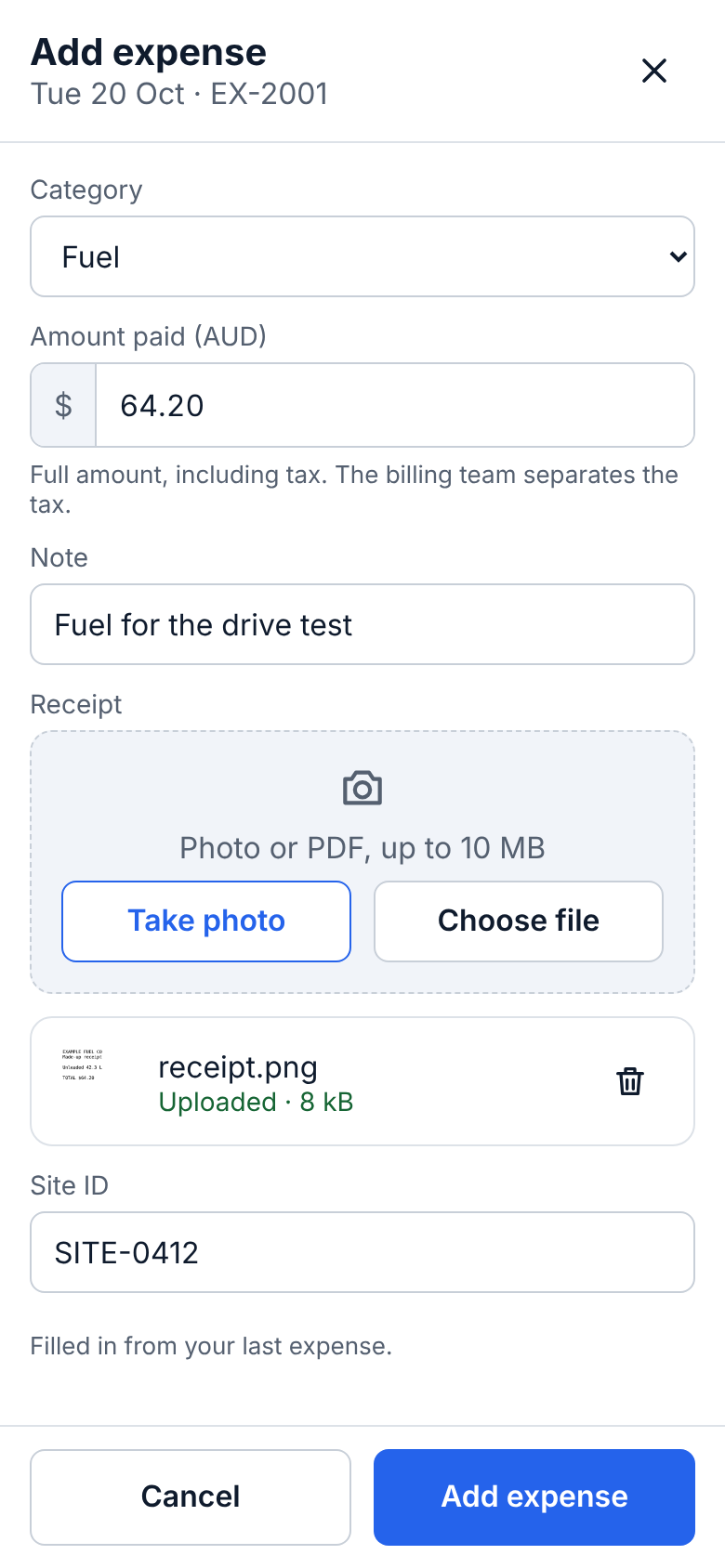
- On My day, tap + Add expense.
- Pick the Category and type the Amount paid: the full amount, tax included.
- Tap Take photo to photograph the receipt (or Choose file). It shows "Uploaded" when it's in.
- Tap Add expense. My day shows it, sent for approval.
4. Fix a rejected line
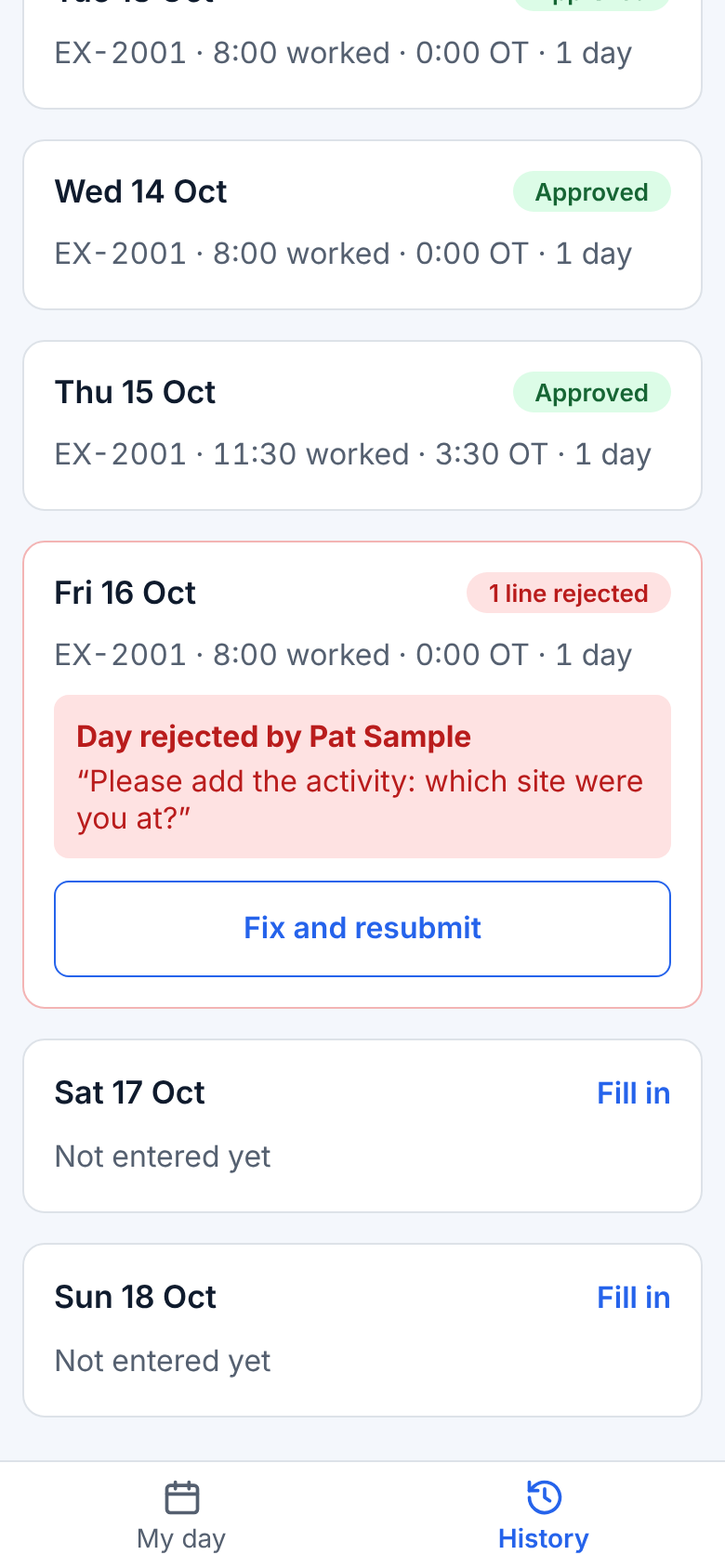
You usually get an email too when a line is rejected.
- Tap History. It opens on this week; for an earlier week, tap ‹ next to the dates. The day shows "1 line rejected", who rejected it and why.
- Tap Fix and resubmit. The day (or expense) opens with the reason at the top.
- Change what was asked, then tap Fix and resubmit.
5. Fill in your route
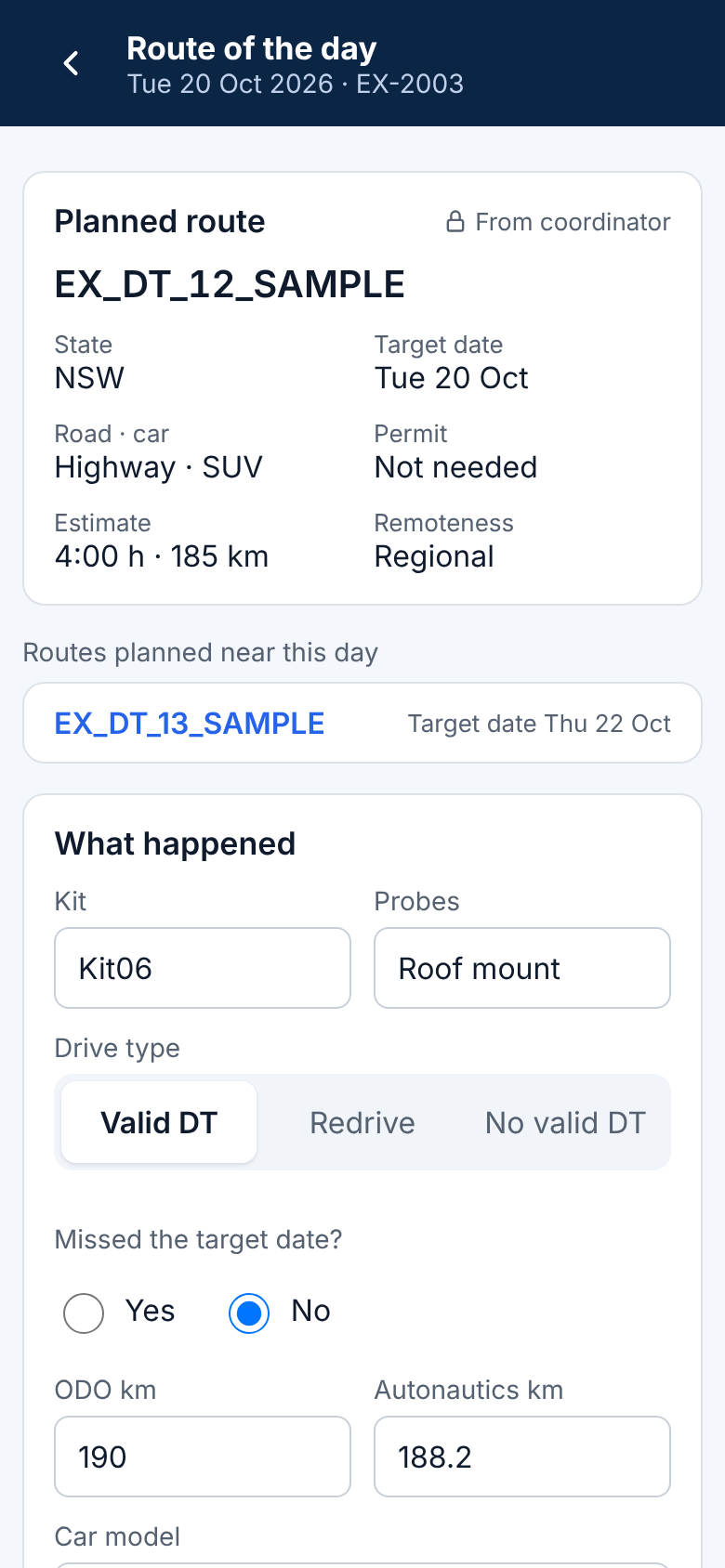
- On My day, tap Route of the day (it shows when a route is planned near that day).
- The planned route is at the top, locked. Under What happened, fill in the drive type, km and car.
- If you missed the target date, tap Yes and say why.
- Tap Save route. You can change it until your coordinator approves it.
If something goes wrong
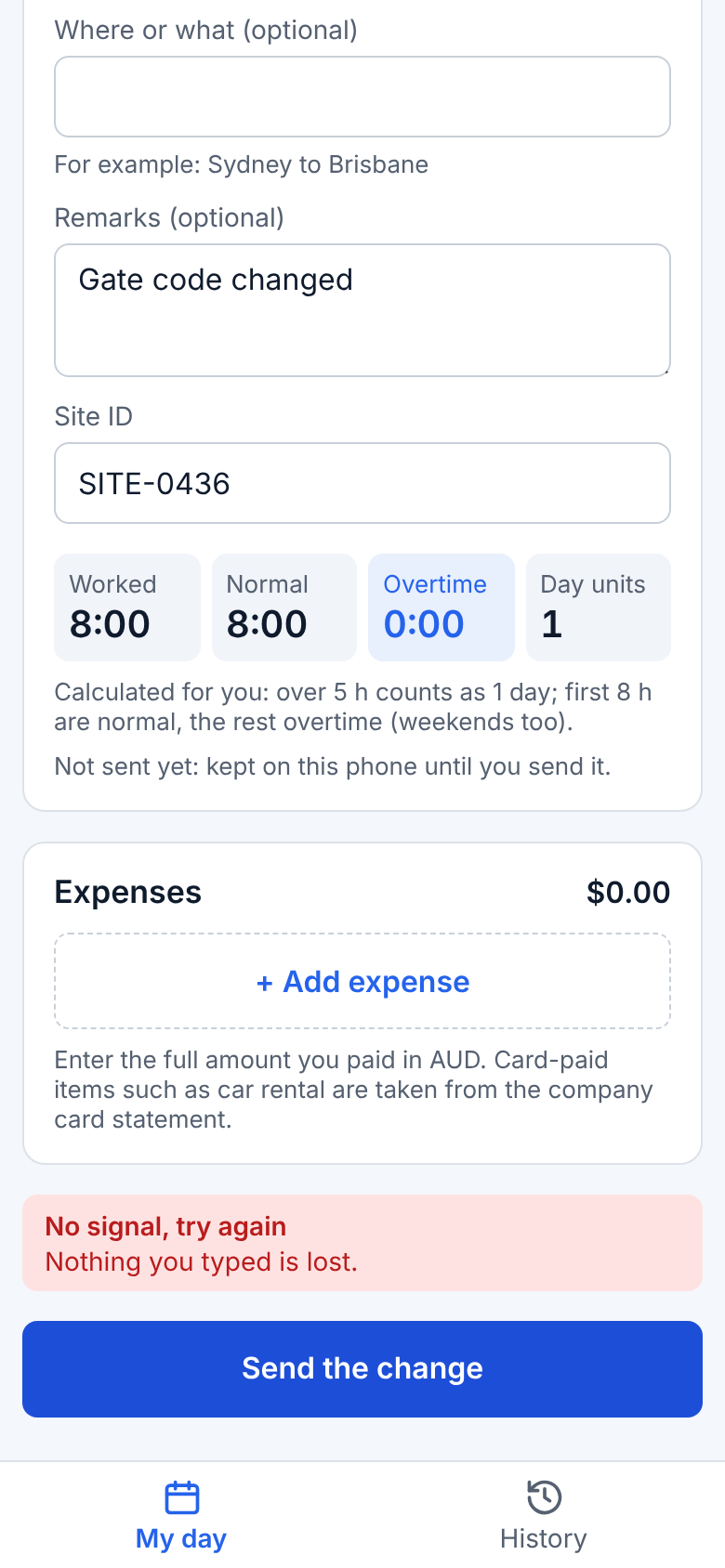
- No signal. You see "No signal, try again: Nothing you typed is lost." Everything you typed stays on the phone, even if you close the app. When you have signal, tap the blue button again. Don't sign out first: signing out asks you to send what's waiting, or removes it from this phone.
- Where is my day? If your company uses two-step approval, a sent day says "Waiting for the coordinator", then "Waiting for the project manager", then "Approved". You can still change it until it is approved.
- Wrong project code. While the day still says Pending (or Waiting for…), pick the right Project and tap Send the change. "You're not on a project on this day" means you aren't added to it yet: ask your project manager.
- A rejected line. See task 4. The reason says what to change.
- A locked line. An approved or invoiced day says "Your project manager approved this day, so it can't change." Something wrong? Ask your project manager: an admin can reopen it with a reason, and then you can change it.
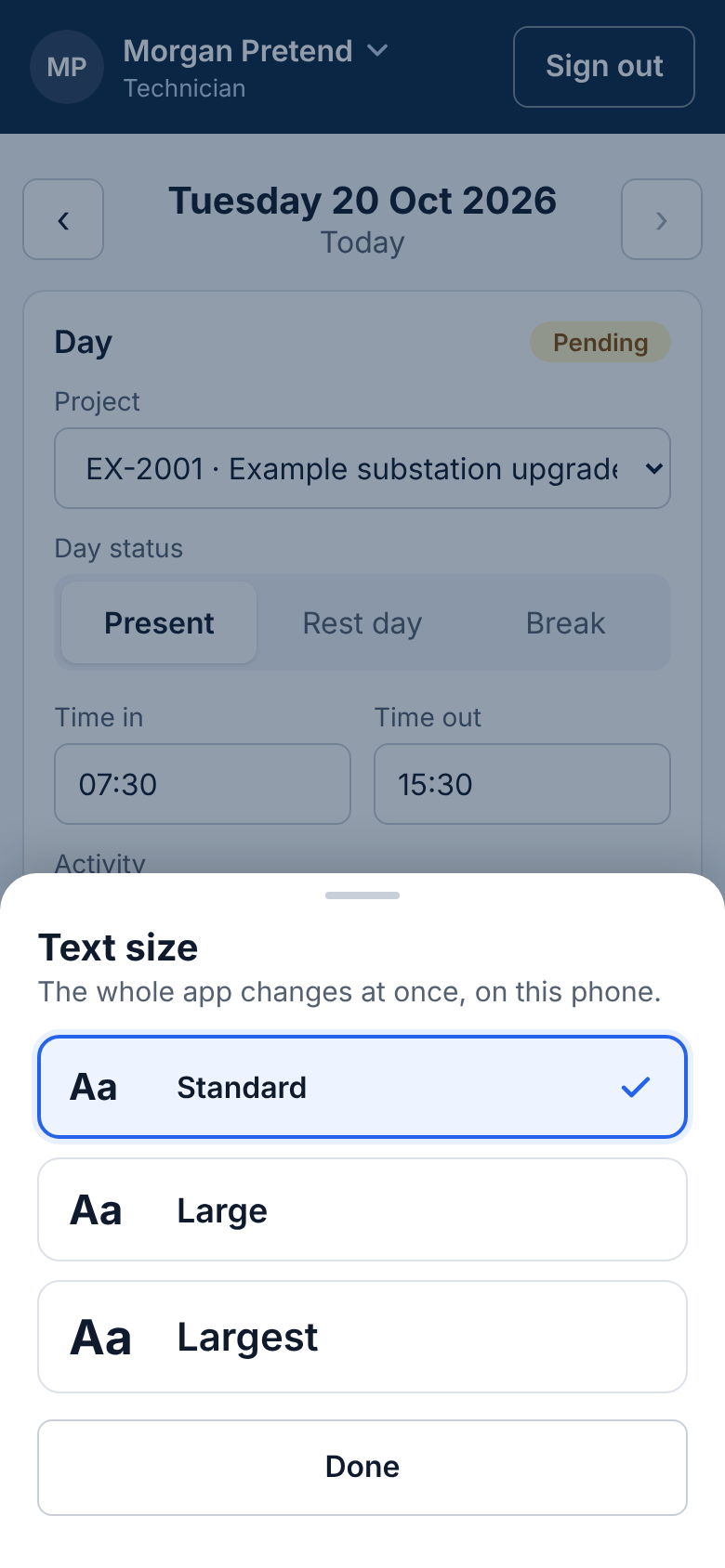
- Text too small? Tap your name at the top and pick Large or Largest.
Pictures are from the app with made-up people and projects, never real ones. All guides